
Gemfire Development Environment Preparation on Windows
I prefer to use Windows operation system as a development operation system. The reason is pretty simple: I like
windows forms, buttons and mouse. There is no any other reasons and you could use any operation system as you like.
This post is about windows installation but the Java is anywhere so use thouse steps in Linux, MacOs just only change
installation folders.
Requirements
First of all we need Java JDK installed on your PC. Second requirement is PC, it is better to have 8Gb memory or more.
Downloads
Assume that you are having JDK installed on your PC. I prefer Sun-Oracle 1.6.0_30 version and recommend to use it.
Additionally we need to download Gemfire and related staff from VMWare portal.
Go to vFabric Gemfire page.
You will see the first screen with “Download Trial” button.
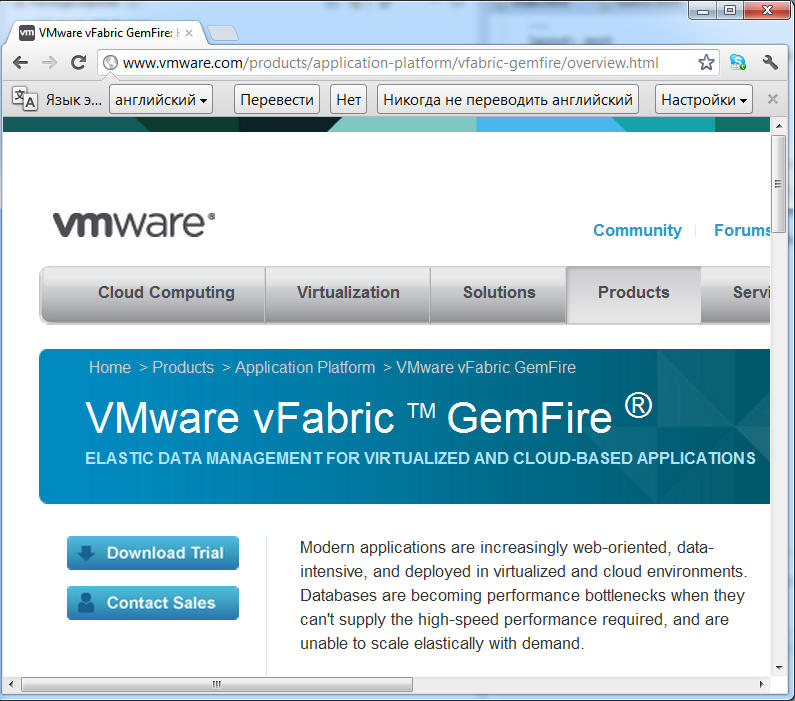
Click on this button and go to the next page.
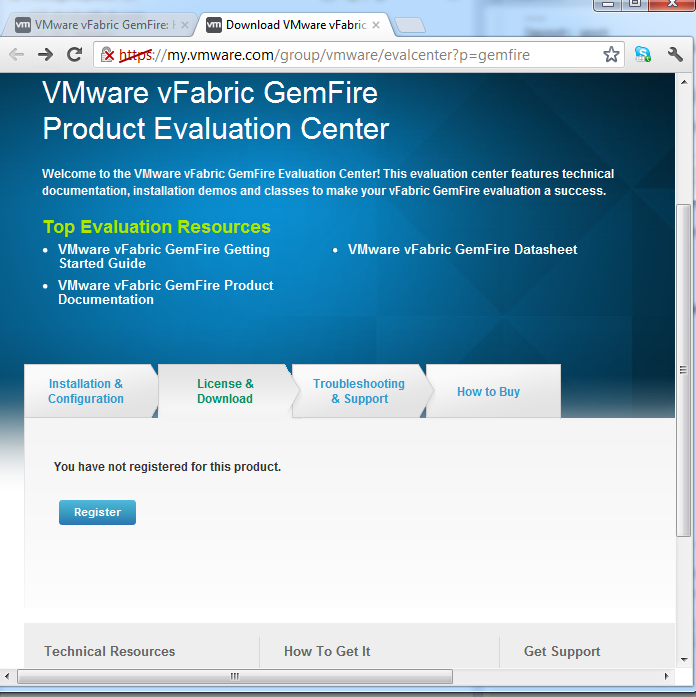
Click the “Register” button and fill the form. After that you will be on download page with Gemfire components.
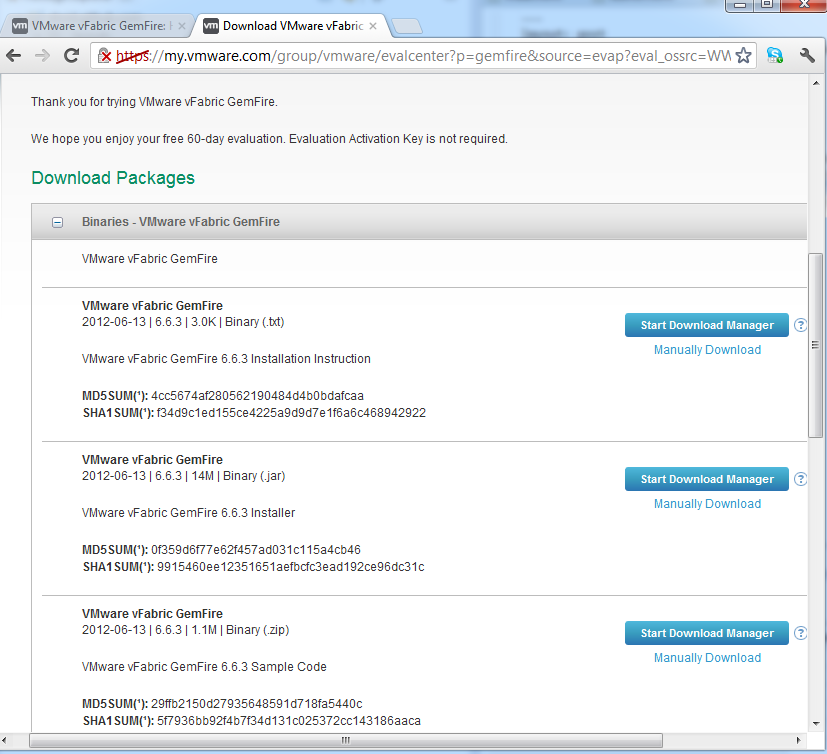
You don’t need to download all components, but only necessary for Windows development:
Please download this list of components:
- VMware vFabric GemFire 6.6.3 Installer (.jar)
- VMware vFabric GemFire 6.6.3 Sample Code (.zip)
- VMware vFabric GemFire Hibernate Cache Module 2.1.1 (.zip)
- VMware vFabric GemFire HTTP Session Management Module 2.1.1 for Tomcat 7 (.zip)
- GemFire Visual Statistics Display 1.0 – Windows (.zip)
- VMware vFabric GemFire GFMon Tool 2.7 Installer (.jar)
- VMware vFabric GemFire DataBrowser Tool 1.4.0 Installer (.jar)
Rename java installers from (.zip) to (.jar) if need.
Installation Steps
We need to create home directory for Gemfire. I prefer to install Gemfire on Windows to the C:\vmware\gf663 or similar directory without spaces.
mkdir C:\vmware
mkdir C:\vmware\gf663
Gemfire team is making releases very often so I prefer to name Gemfire folder with version number, in this case gf663.
Next step will be Gemfire installation to this folder.
java -jar path_to\vFabric_GemFire_663_Installer.jar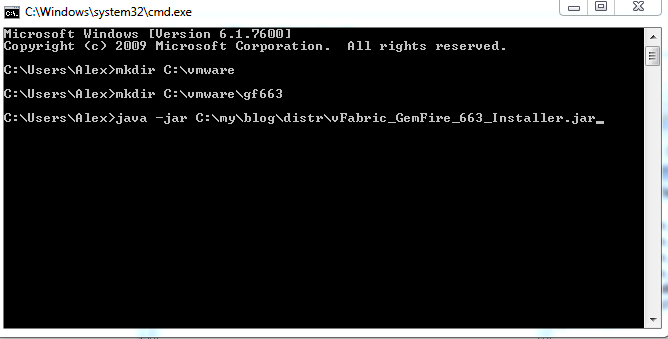
In installation steps answer “agree“ and enter folder C:\vmware\gf663
After Gemfire installation we need to make same steps for GFMon and DataBrowser installation.
java -jar path_to\vFabric_GFMon27_Installer.jar
java -jar path_to\vFabric_GFDataBrowser14_Installer.jar
In both installations answer “agree“ and enter folder C:\vmware\gf663. Answer “Yes“ for all overrides.
After all installations you will have this folder structure:
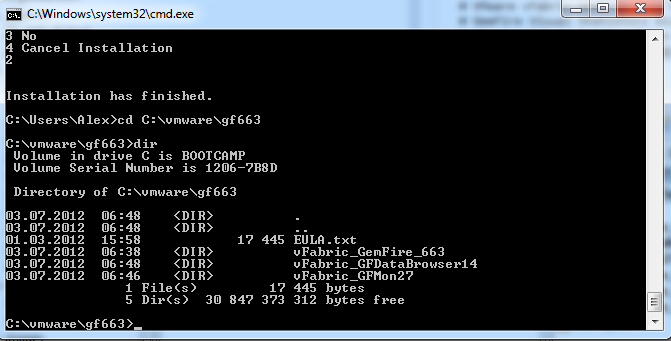
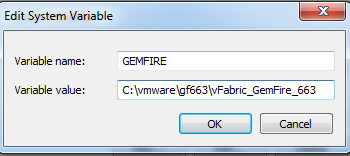
The last step is to define system variable GEMFIRE. Open Computer properties dialog box (Start→Computer->Right Click->Properties) and click to “Advanced system settings“. Select Advanced tab and click to the “Environment Variables“. Add variable GEMFIRE with value C:\vmware\gf663\vFabric_GemFire_663.
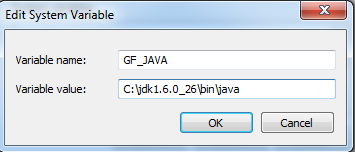
Additionally you could define exact Java for Gemfire if you have several in you system. For this purpose define variable GF_JAVA.
Installation is completed. Other Gemfire components will be used in next examples and posts.